I’m testing RCloneView 1.2.538 version on Windows 10 22H2.
Sorry for my ignorance , but for Local filesystem, I cannot simply select my D:\ disk to start with. After fresh install of RCloneView, I added “The local filesystem” as new Remote. It appears properly, and by default it shows C:\ disk. But how can I change to see my D:\ or any other disk in Windows?
If I enter “D:\” to Breadcrumb Path Bar, I always get “Folder Not found”.
Is this a bug, or do I just not know what is the format exacty to use in Breadcrumb Path Bar?
That works indeed. It was not intuitive for me, but now get it.
Now that I checked further, I noticed that Alias can be created in two ways:
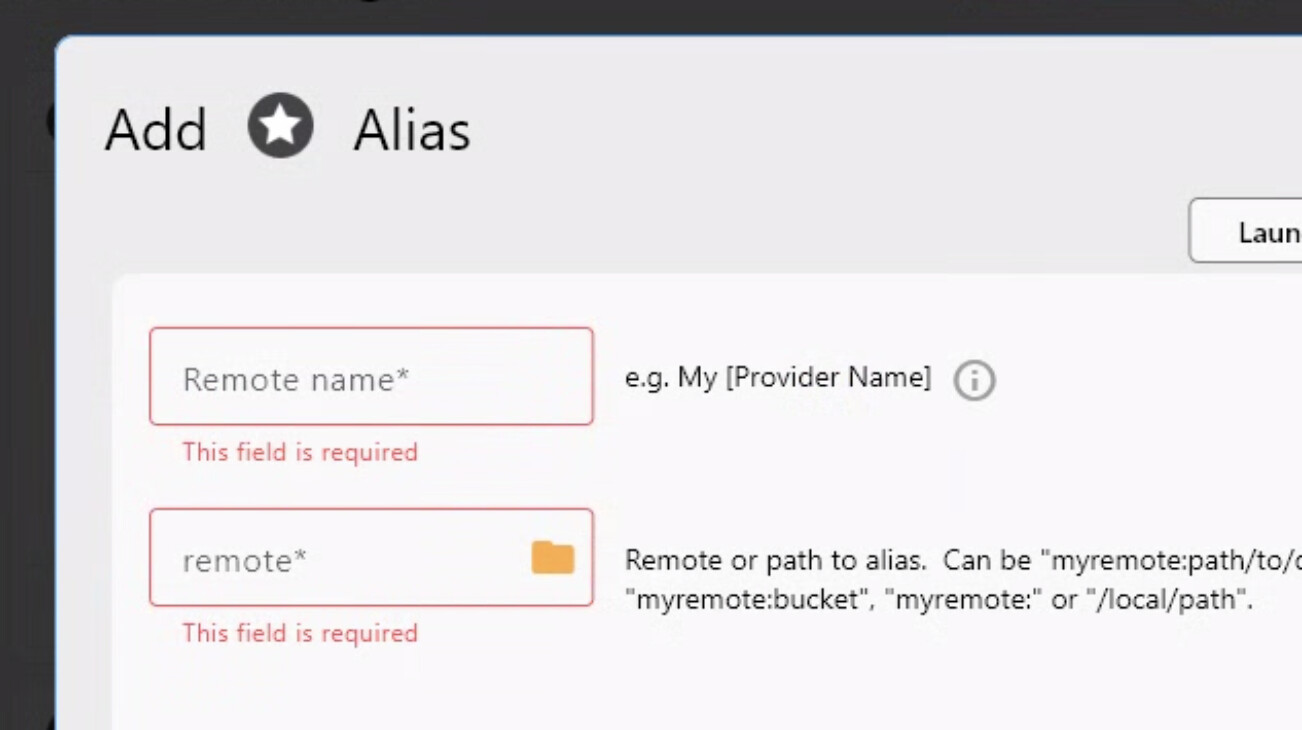
As you write, via the New Remote > Alias menu.
Also this way: I click the empty star at Pane Toolbar “Create as Alias”. It enables to specify Alias name, but not Remote. Anyway I edit Alias name to “D”.
After Create, I can open the tab on my D: disk, which contains my D:/ disk content propely.
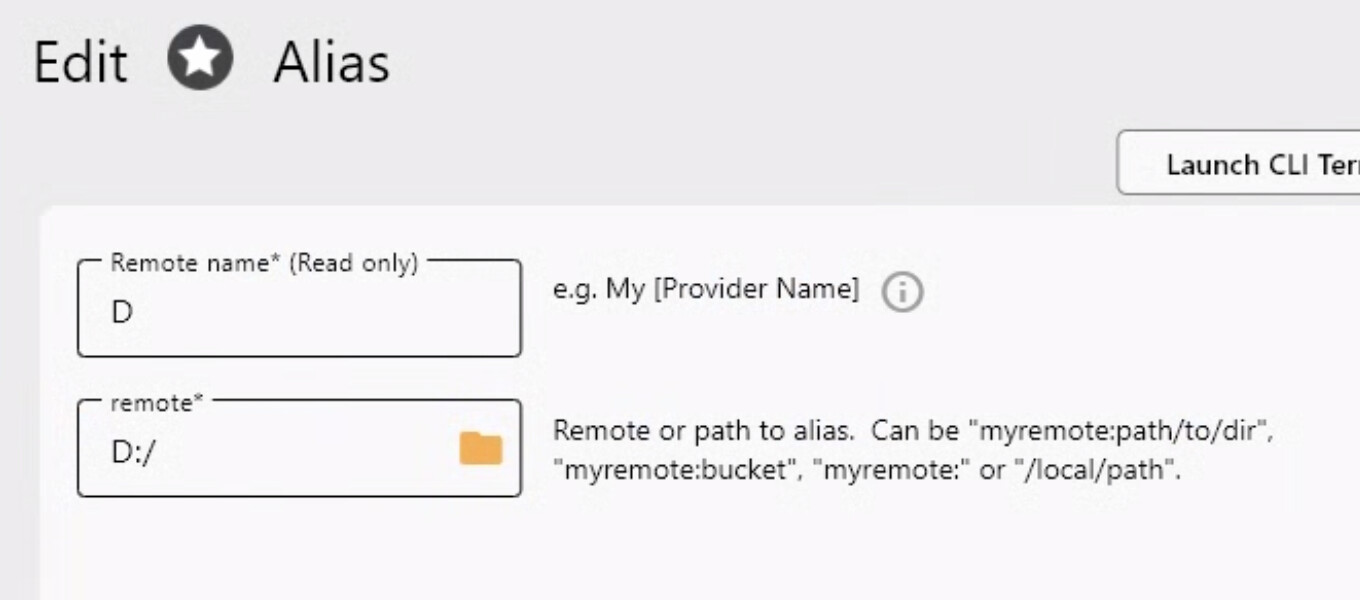
If in Remote Manager, I check D remote and click Edit, I see that Remote value is “Local:” which was my original name for the local filesystem. (Cannot post multiple screenshots, since I’m new here.)
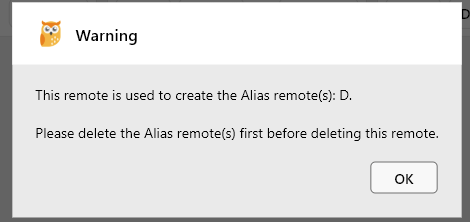
I can change the Remote value to anything, the alias “D” will work on my D:/ disk anyway. However I can only delete the D Alias remote, if I in Edit Alias window, I edit the remote value back to “Local:” If I leave it on “D:/”, and try to delete remote, I get this warning: